YouTube can get weirdly “sticky.” You watch one video out of curiosity, and suddenly that YouTube channel is everywhere.
So if you’re here to figure out how to block a channel on YouTube, you’re in the right place. Let’s fix that in multiple ways.
Quick heads-up, though: “block” on YouTube can mean a few different things depending on what you want to control. The point is, you just don’t want that kind of content anymore (or in the meantime).
Some options remove videos from your recommendations. Some are for creators managing comments. And the closest thing to a true block is inside YouTube Kids.
We see this a lot at Vidpros when working with YouTube creators. The platform is packed, and your viewing choices affect what keeps getting served. A little cleanup goes a long way for your YouTube experience.
What “Block” Means on YouTube
Before you start tapping buttons, it helps to know what YouTube actually offers.
Here’s the short version:
-
Don’t recommend channel = YouTube should stop suggesting videos from that channel while you browse YouTube (Home feed and common recommended sections).
-
Not interested = You’re telling YouTube you don’t want that specific video, and usually less of that vibe going forward.
-
Hide user from my channel = Creator control. It’s for managing users who comment on your channel.
-
Block channel on YouTube Kids = Parent control. This is the closest thing to a true channel block.
So yes, blocking YouTube channels is possible in a practical way. On regular YouTube, it mostly means “stop recommending this channel,” not “remove it from the internet.”
How to Block a YouTube Channel From Your Feed with “Don’t recommend channel”
If your goal is “stop showing me this creator,” this is the best option.
You’ll usually see it when you click the three dots next to a video. It works on both desktop and in the YouTube app, although the exact placement can vary.
On Desktop (Home Feed and Suggested Videos)
You’ll normally see Don’t recommend channel in two places:
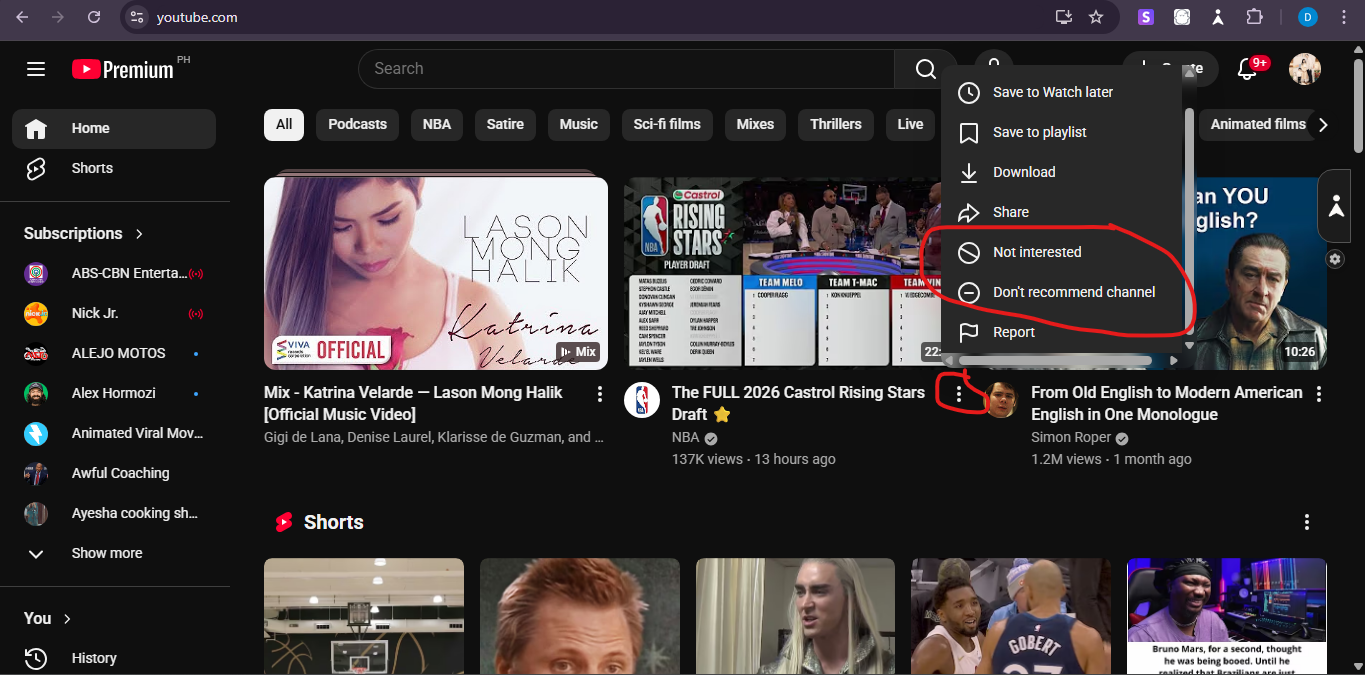
1) On the YouTube homepage
Do this:
-
Open YouTube on your computer and sign into your YouTube account
-
Find a video from the channel you don’t want
-
Click the three dots
-
Click Don’t recommend channel
2) On suggested videos while you’re watching a video
Do this:
-
Start watching any video
-
Look at the recommended videos on the right side
-
Find a video from the channel you want to avoid
-
Click the three dots
-
Click Don’t recommend channel
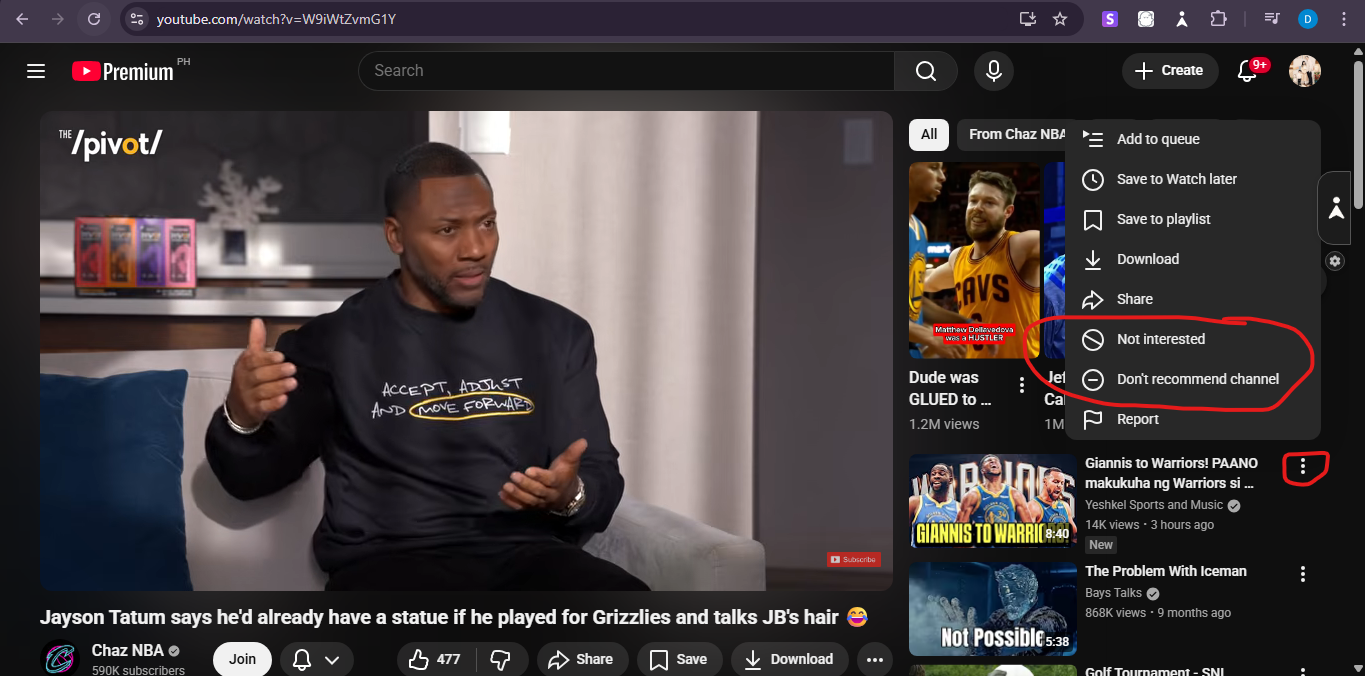
This is the most direct way to “block specific channels” from popping up repeatedly in the places YouTube pushes recommendations.
On Mobile (YouTube app)
On a mobile device, the flow is similar:
-
Open the YouTube app
-
Find a video from the channel (Home feed works best)
-
Tap the three dots
-
Tap Don’t recommend channel if you see it
Small reality check: on some mobile recommendation surfaces, YouTube only shows Not interested. That’s normal.
What Happens After You Use “Don’t recommend channel”
After you click it:
-
That channel should stop showing up on recommendation surfaces like your Home feed and many “recommended” lists.
-
You may still run into the channel in search results, shared links, or playlists someone sends you.
That’s why I call this recommendation blocking, not a permanent erase button.
And if Shorts is where you keep seeing them, you’ll usually use the next method more often.
Use “Not interested” to Clean up Recommendations Fast
This one is your quick cleanup tool. If YouTube is guessing wrong, this helps steer it back.
I use Not interested when I’m fine with the topic in general, but I don’t want that exact content showing up again. It’s also the main option you’ll see on Shorts.
On Desktop
Do this:
-
Find the video on the Home feed or the suggested list
-
Click the three dots
-
Click Not interested
Sometimes YouTube asks why. If you see those prompts, they can help you train the feed faster.
On Shorts (desktop and mobile)
Shorts often gives you fewer controls. Most of the time it’s only:
-
Tap the three dots
-
Tap Not interested
If you keep doing that for similar videos, you’ll usually see fewer of them over time.
On Mobile Recommendations While Watching a Video
On mobile, recommendations below the current video often show:
-
Tap the three dots
-
Tap Not interested
You might not see “Don’t recommend channel” there, which is why it helps to also do the first method from the Home feed when you can.
Now that you’ve seen both options, let’s settle the question people ask right after they use them.
Not interested vs Don’t recommend channel (which one should you use?)
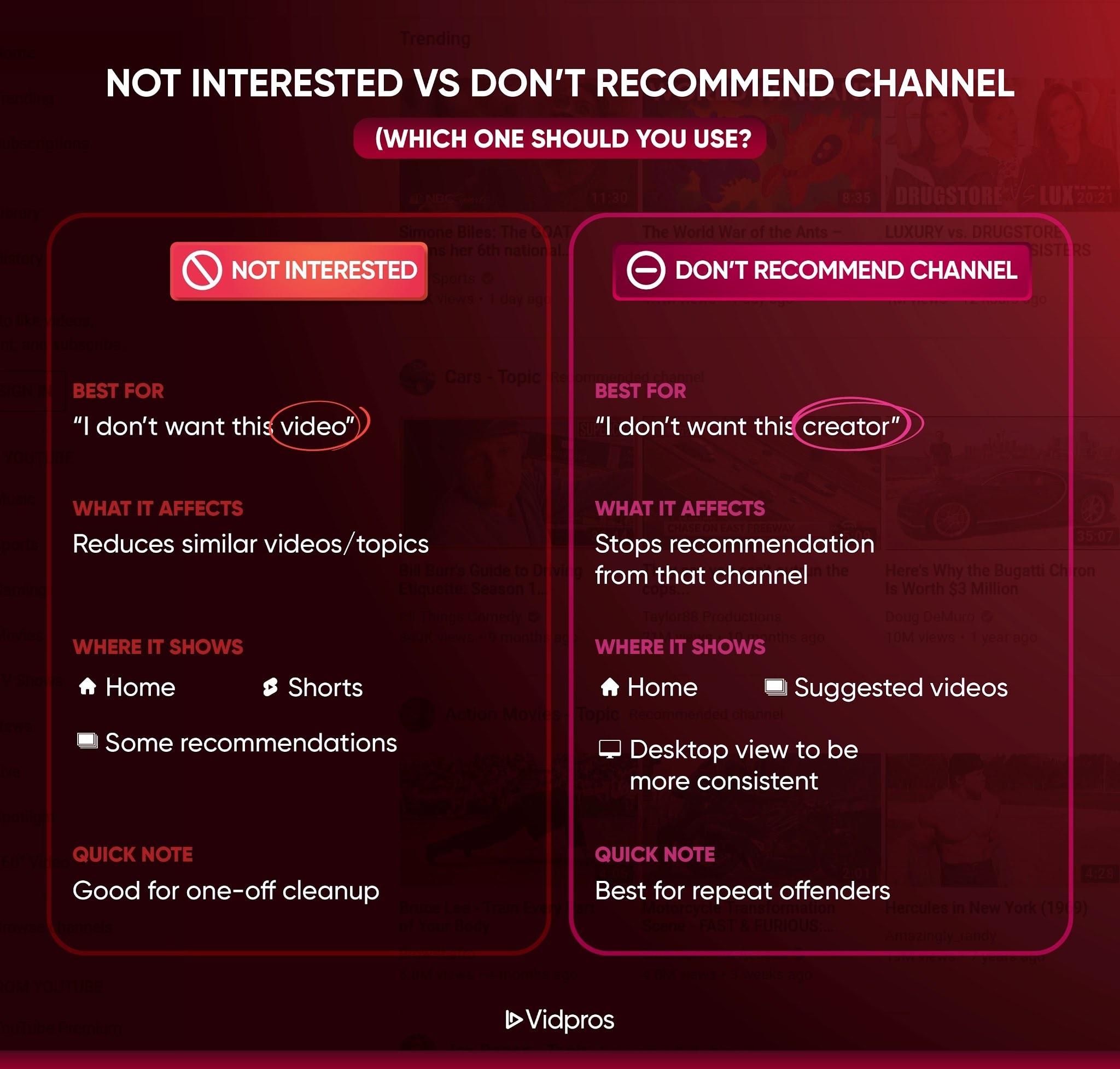
This is the part people overthink, so I’ll keep it simple. The choice depends on what you’re trying to remove.
Here’s how I think about Not interested vs don’t recommend channel.
Use “Not interested” When
This fits if you’re thinking:
-
“I don’t want this video.”
-
“This topic isn’t for me right now.”
-
“This content feels off for my feed.”
It’s also the go-to option when YouTube doesn’t give you anything else, which is common on Shorts and some mobile recommendation sections.
Use “Don’t recommend channel” When
This fits if you’re thinking:
-
“I don’t want videos from this specific creator.”
-
“I want to block a YouTube channel from my Home feed.”
-
“This channel keeps appearing, and I’m done.”
If your goal is how to block a channel on YouTube, this is usually what you mean, because it targets a specific channel.
Hide User From Channel YouTube (this is for comments and your channel)
If you run a channel, this is the one you want to remember.
Hide user from channel YouTube is not about your recommendations. It’s about stopping a specific person’s comments from showing up publicly on your channel.
What “Hide user” Does
When you hide someone:
-
Their comments won’t be visible to other viewers
-
They can still watch your videos
-
They can still post comments, but those comments won’t show publicly
It’s one of the cleanest “no drama” tools YouTube has for creators.
Fast Method: Hide Them From a Comment
If the user already commented:
-
Find their comment
-
Click or tap the three dots
-
Choose the option to hide the user from your channel
Channel Page Method (Report User Flow)
If you want to do it from their channel page, here’s the usual path:
-
Visit the channel page
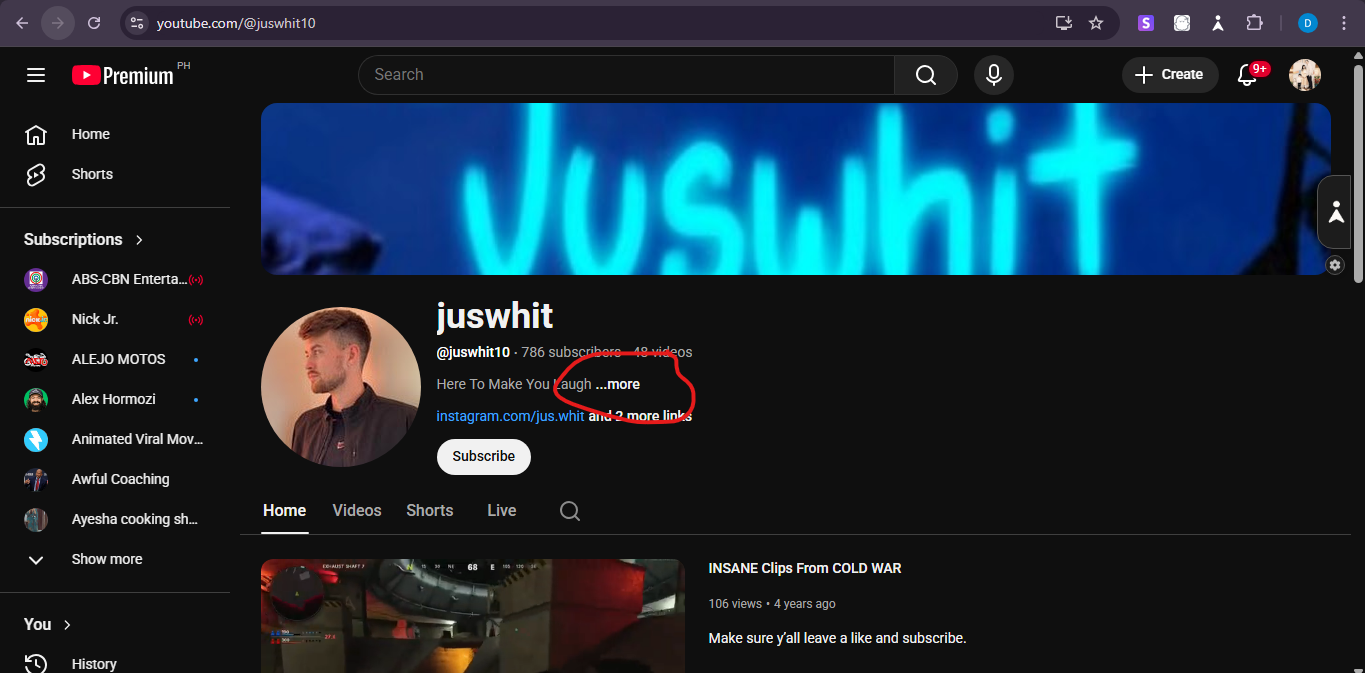
-
Click More in the channel description area (or open their info panel)
-
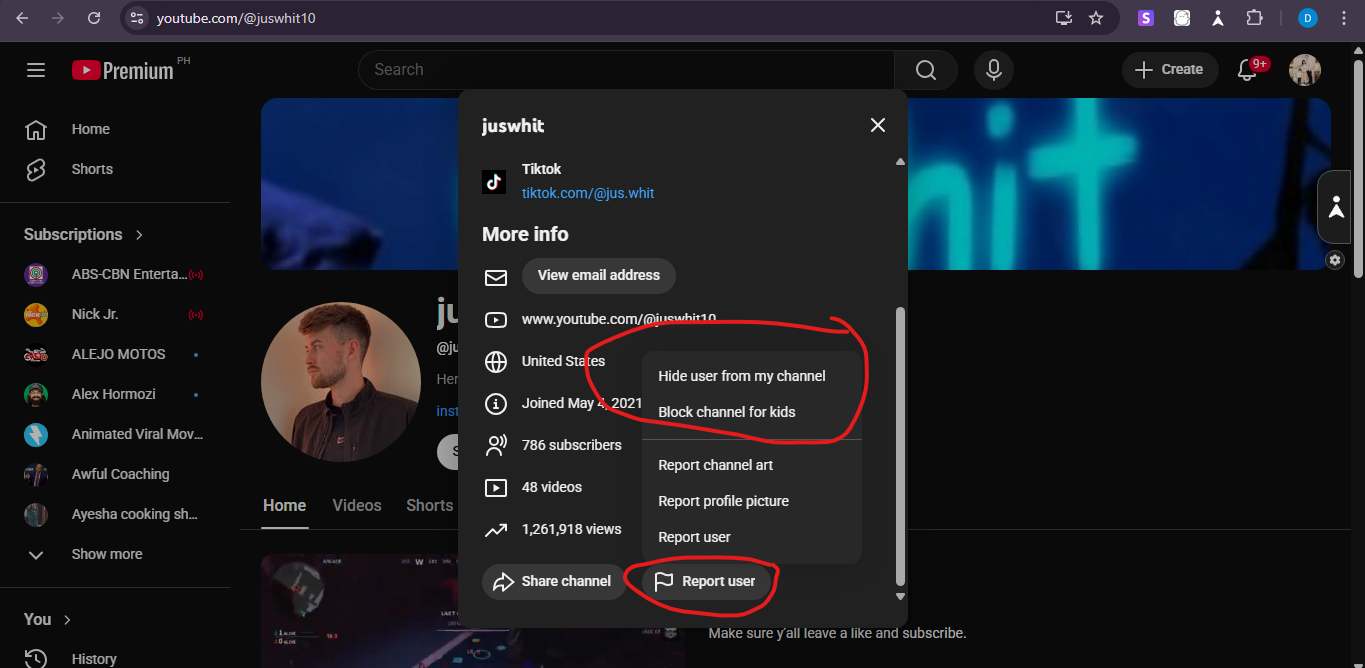
Scroll down and choose Report user
-
Select Hide user from my channel
Block Channel on YouTube Kids (the closest thing to a true block)
If you’re trying to keep kids away from a specific creator, this is where YouTube gets much more direct.
How to block a channel on YouTube in real terms.
Block channel on YouTube Kids is a real feature, and it’s the best option if your goal is to stop a channel from showing up for your child.
In the YouTube Kids app
In the YouTube Kids app, you can block a channel like this:
-
Open YouTube Kids
-
Find a video from the channel
-
Tap the three dots
-
Tap Block this channel
-
Confirm
This is a great fit if you’re trying to avoid mature content or inappropriate content from a specific creator.
“Block Channel for kids” on a Channel Page
On some accounts, you’ll also see “Block channel for kids” when you open the channel’s info panel. That’s tied to parent controls and supervised settings.
If you see it, use it. It’s one of the few places YouTube offers real “block channels” functionality.
Even with all of that, you might still spot a channel again. Usually there’s a simple reason, and it’s not you doing anything wrong.
Troubleshooting: Why the Channel Still Shows Up Sometimes
If you’re thinking, “I already blocked this,” but it still pops up at some point, then look at it in this perspective..
Here are the most common reasons, and what to do next.
You’re Seeing it in Search Results
Recommendation controls do not always remove channels from search results.
Try this:
-
Avoid clicking their videos from the search bar
-
Reinforce the signal by using “Don’t recommend channel” again if it appears in recommendations
You’re Still Subscribed
If you’re subscribed, YouTube assumes you want their videos.
Try this:
-
Visit the channel page
-
Unsubscribe
-
Then use “Don’t recommend channel” to reinforce the change
It Came Through a Playlist or a Shared Link
A playlist, a friend’s link, or an embedded video can bring the channel back in front of you.
Try this:
-
Don’t engage with it
-
Use “Not interested” if it shows up in your feed again
Shorts Only Gives You “Not interested”
This is common. Shorts has fewer controls.
Try this:
-
Keep using “Not interested”
-
Also use “Don’t recommend channel” from the Home feed when you see one of their normal videos
If You’re Building a Channel, Feed Control Matters Too
Cleaning up your feed makes YouTube feel normal again. Less noise, more of what you actually want to watch.
And if you’re on the creator side, this is part of the job too. The people who win on YouTube are usually the ones who can post consistently without burning their whole week on editing.
If you want help there, Vidpros offers a $100 trial for 1 week of professional video editing.
You can use it for:
-
10 short-form videos, or
-
1 long-form video
Want to see what your videos could look like with a dedicated editor? Check out what we offer and grab the $100 trial if it feels like a fit.