A major area of higher ed for decades now has been lecture capture. The issue of capturing content while the lecturer is speaking was largely resolved over the last decade by platforms such as Panopto, Echo360, Kaltura, YuJa, Mediasite and others. More recently, using Zoom for lecture capture has bridged the lower end of quality for those who cannot afford Panopto type systems.
However, even though we are able to capture high-quality recordings, students rarely view them in their entirety. On average, students will typically watch a recorded lecture approximately 6 minutes when reviewing. This is an enormous discrepancy between the manner in which lecturers are producing these recordings, and the way they are being consumed by students.
This article discusses the current gap in technology between the recording process of a lecture, and the consumption process by a student.
The Evolution of Automated Lecture Capture in Modern Higher Education
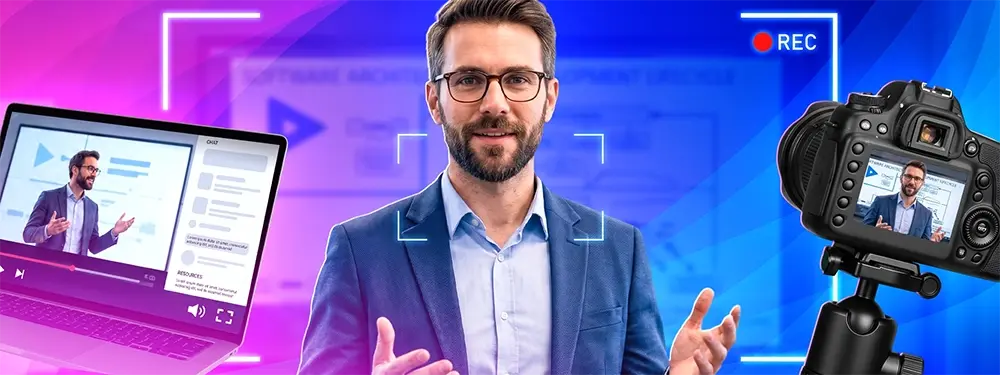
Lecture capture refers to the method of recording instructional material presented within a classroom or training environment, which may then be reviewed, studied or distributed. In order to perform lecture capture effectively there needs to be an operational system in place that performs a minimum of the following tasks: records both faculty video and audio; captures either the slide presentation or display output of the instructor; synchronizes both the faculty video/audio and the slide display/output on a common time code; makes the resulting product accessible to users within a learning management system (LMS).
What is not lecture capture? A video conferencing replay. Although Zoom meetings can be converted into a lecture capture format once slides are synchronized to time code, indexed and captions corrected, raw Zoom meeting files stored in a Panopto directory are simply captured footage, not educational assets.
It is also not a substitute for instructional design. Recording a face-to-face lecture does not create a course.
Hardware vs software-based lecture capture
Historically, vendors defined their camp based on whether their solutions were hardware-based or software-based. However, this distinction is rapidly diminishing. Echo360 still manufactures and distributes physical appliances specifically designed for use in room-based lecture capture. Epiphan’s Pearl Nexus bundle costs start at $4,729 (Essentials package includes Pearl Nexus + one EC20 PTZ camera) and go up to $6,149 (Plus with two cameras, Epiphan).
On the other hand, Panopto, YuJa and Kaltura describe themselves as “hardware agnostic” and therefore compatible with any combination of cameras and capture cards currently installed in a particular room.
Hardware-based appliances are ideal for large lecture halls with consistent scheduling, IT departments that prefer faculty not touch software and failure modes that are physically predictable. Conversely, software-based capture is better suited for smaller classrooms, hybrid classrooms, faculty laptops and dispersed campuses where purchasing 200+ units would be impractical. While setup costs for software capture are less expensive than hardware-based solutions, reliability is contingent upon who is operating the laptop. A viable hybrid solution would deploy hardware-based capture systems in all 12 of your largest halls and software-based capture in every hall/room/classroom elsewhere on campus. For example, UT Knoxville uses Zoom Cloud to send recordings directly into Panopto folders. (UTK OIT)
The lecture capture software market: Panopto, Echo360, Kaltura, YuJa, Mediasite, Zoom
Although there is no single “best” platform available today, there are several areas where each platform excels.
Panopto pricing is done on a custom annual contract basis for enterprises with no public rate card (Panopto lecture recording guide). As the leading provider of lecture capture solutions Panopto provides robust integration with many learning management systems (LMS), auto-indexes slides with corresponding timestamps, auto-transcribes recorded lectures allowing students to quickly locate specific terms and phrases and supports multiple types of hardware configurations. Additionally, heatmap style analytics are used to track viewer engagement and provide detailed export capabilities to report user completions. Aggregated user reviews are consistent on one weak spot: the interface reads as basic and the built-in video editor is widely described as clunky and thin on features.
Echo360 offers custom quotes based on a per-student pricing model (Panopto vs Echo360). Up to 4 channels of simultaneous multi-camera recording. Best-in-class for fixed install lecture halls with reliable appliance-based recording and attendance scoring; according to one review “the recording appliances are very stable.”
Kaltura offers annual enterprise contracts. It is a larger media platform offering live streaming services along with additional functionality beyond just recording lectures. Although Kaltura does offer some configuration options to optimize it strictly for lecture capture, it requires significantly more tuning compared to Panopto (Cloudinary comparison). Pricing for YuJa is based on full-time equivalent (FTE) employees and storage capacity. YuJa has historically been successful in RFPs based solely on price relative to Panopto. Mediasite continues to remain the preferred platform in medical schools and research institutions requiring archiving capabilities spanning years if not decades. Mediasite has lost momentum in recent RFPs.
Because nearly every institution in the world has already deployed Zoom on their campuses, pairing Zoom Cloud Recording with a downstream platform creates a functional workflow at minimal incremental cost. Northern Illinois University utilizes a hybrid approach of one-way asynchronous streaming from Zoom for face-to-face/staggered classes. (NIU CITL)
Below is a side-by-side chart comparing the six platforms by metrics relevant to budgeting and roll-out. Vendor information was verified during October 2026; please verify terms prior to signing a contract.
Platform | Pricing model | LMS integrations | Auto-captions |
Panopto | Custom annual enterprise contract, no public rate card | Canvas, Blackboard, Moodle, Brightspace, with gradebook sync | Automated captions (20+ languages per Panopto), one-click access to third-party human captioning |
Echo360 | Custom quote, tied to a per-student model | Canvas, Blackboard, Moodle with gradebook sync, others via LTI | Built-in captioning with an editing workflow |
Kaltura | Annual enterprise contract, REACH captioning sold as a separate service | Canvas, Blackboard, Brightspace, Moodle, Sakai via LTI | REACH machine captions (about 85% accuracy) or human captions (about 99%) |
YuJa | Custom quote, will price-match a verified competitor proposal | Canvas, Blackboard, Moodle via LTI with gradebook sync (confirm Brightspace and Sakai with YuJa) | Auto-captions, plus AI captioning during live events, one-click third-party human captioning |
Mediasite | Quote-based, no public pricing (now owned by Enghouse) | Confirm current list with the vendor | Confirm with the vendor |
Zoom | Per-user subscription, Pro listed at about $16.99 per user per month | LTI Pro for Canvas, Blackboard, Sakai and other LTI-based LMS | Built-in transcript and captions, with availability depending on plan |
A position: with no incumbent, Panopto’s combination of LMS depth, transcript search, and hardware flexibility is the strongest default. Price-sensitive at scale, YuJa is the more honest enterprise quote. With legacy Echo360 appliances, keep them and add Zoom-to-Panopto for the long tail rather than ripping anything out.
Live streaming versus pre-recording

They both fit. Live provides the classroom atmosphere and allows remote students to interact immediately. After the lecture, the recording is available; no further editing is done except to provide captions. The trade-off is that you get what you capture. Errors, dead space, that 90-second ramble about parking permits. They all stay.
The ability to edit is provided by pre-recording. What was a 75 minute live session becomes a 30 minute reusable educational resource after a good edit (VMG Studios on the trade off).
Practical guidelines for faculty media specialists: Live-stream the synchronized portion so remote students may participate. Then, pre-record those portions intended for the LMS as long-term assets. Pre-recorded modules will receive a script outline and multiple takes, if necessary, and an editor pass. The live-stream will be archived with auto-captions for absent students wishing to view a module.
How to record a lecture: cameras, audio, slides
The basic setup that works well in a typical lecture hall:
- At least 2 cameras. One wide-angle shot of the lectern, and one close-up of the instructor. A PTZ camera covering the students in attendance is a luxury item, especially when there are student questions during the recording (FERPA compliant).
- Audio from a lavalier or boom microphone on the instructor, along with a room microphone capturing the students and environment. Do not use your laptop’s internal microphones for recording audio. The quality of audio is by far the biggest factor determining whether or not a recording will be viewed again.
- Feed directly from the presentation computer’s HDMI port to capture slides. Do not point a camera at the screen. This represents the difference between a recording being watchable and un-watchable.
- Include a clapper or some other form of visual timing reference at the beginning so that the editor can synchronize cameras and slides based upon a common time code.
- Back up locally to each camera card, even though you are transmitting live. Appliance failures happen. SD cards rarely do.
If you’re planning to create a studio for creating pre-recorded modules instead of live captures, please refer to our online course video production guide which details how to build your own studio. Your lecture-capture setup will be much simpler than this setup.
LMS integration: Canvas, Blackboard, Moodle, D2L
The actual decision-making process occurs here regarding vendor choice. Capturing the video is relatively simple. However, placing the recorded video in the correct course shell with proper viewing permissions and allowing engagement metrics to travel back to your grade book is much harder.
Panopto has the best integration with Canvas using its LTI connector and automatically provisions folders per course. Additionally, Panopto automatically synchronizes grades with Canvas when assigning videos to students within Canvas. Finally, Panopto tracks user completion metrics per video assigned to users in Canvas. Echo360 also integrates with Canvas, Blackboard and D2L and includes similar grade book control to Panopto although it offers slightly less fine-grained control. Kaltura uses its KAF interface to integrate with Canvas, Blackboard, D2L and Moodle however it requires more IT resources to manage than Panopto or Echo360. YuJa offers equal levels of integration to Panopto at typically lower costs.
There are two questions you should ask vendors prior to selecting them: Firstly, does your LTI connector allow for automatic folder creation per course section? Or does somebody manually create new folders for each course section? Secondly, does your LTI connector automatically move engagement data (e.g., watch time, completion rates, quiz results) into your LMS grade book as a column? Or does your connector simply report such data separately in your analytics dashboard? If either of these answers are “no,” your integration will cause operational drags throughout each semester.
The post-production layer: what turns raw capture into something students rewatch
This is the part of the SERP that does not exist. Recording a lecture is step #1 of approximately six total steps. Even assuming you’ve recorded cleanly with nice audio and synced slides, your raw 75-minute capture isn’t yet a completed asset. Students will fast-forward through sections; they will skip over non-relevant areas; they will isolate individual segments from longer lectures because the referenced area(s) were required for an assignment. Post-production serves to convert your raw capture into something that mirrors how students consume your recorded material.
Vidpros workflow on typical lecture-capture asset:
- Remove excess dead-air time from your recordings. Typically 3 to 5 minutes of unused airtime exist before/after recordings begin/end.
- Create multi-camera edits at natural transitions between the wide and tight shots. A 45-minute lecture with no cuts would feel like nothing more than a static archive, so most lectures should contain 30 to 50 transitions/cuts.
- Verify synchronization of slides with your video capture. Most auto-indexing solutions will correctly index most transitions; however, when instructors go back several slides due to a student inquiry, they miss those transitions. An additional 10 to 15 minute human review can prevent many common search errors (students searching for terms that appear on incorrect slides).
- Correct captions. While auto-captions serve as a starting-point, they’re not considered final products. Additional information on corrections can be found in subsequent paragraphs.
- Add chapter marks at every conceptual transition within your recordings with descriptive title tags. Avoid using generic “Section 2” tags; try using tags such as “why does integration fail when database is empty?”
- Produce an approximately 60 to 90 second highlight clip for LMS landing cards so students can quickly determine if they want to spend their next hour watching your full recording.
Ultimately, this process yields around 30 to 45 minutes of viewable content from your original 75 minutes of raw video capture with sufficient metadata to enable discovery.
We perform this process at large-scale via our training video production services and we have created hundreds of hours of university recruitment video for various universities. Once you document your workflow, a faculty media team can accomplish steps 1 to 5 within approximately 30 minutes/hour of finished capture time.
Captioning at scale: auto-captions vs human-corrected, and the ADA reality
All major platforms (Panopto, Echo360, Kaltura, YuJa) provide very good auto-captions. However, none are ADA compliant. Sections 504 and 508 of the Rehabilitation Act of 1973 mandate that all federal agencies provide equal access to education programs and services for individuals with hearing impairments. Public and private institutions of higher education also face legal liability for violating the Americans with Disabilities Act Title II and Title III, respectively. The U.S. Department of Justice and the Office for Civil Rights have settled several lawsuits involving colleges that relied solely on auto-captions.
Accuracy of auto-captioning: on clean lecture audio, auto-captioning produces an acceptable accuracy level of 90 to 95 percent. But accuracy rates drop significantly for: speakers with accents; technical vocabulary; multiple speakers; any background noise in the classroom. Error rates on technical vocabulary and other critical information fall disproportionately on students who need help finding this type of information.
Practical approach to ADA compliance: Upload every single recording using auto-captioning as the baseline. Human-edit any recording associated with formal instruction (e.g., grade-based courses; licensure preparation; training related to accreditation). Build a same-day correction workflow when a student registers for a course with a documented disability requiring accommodations (the timing begins with the receipt of the accommodation letter), because the accommodation letter initiates a timeline that auto-captions cannot fulfill. Store separate transcript files for each recording outside of embedded captions, because transcripts are searchable, downloadable, and citeable, while closed captions do not offer these capabilities.
When considering building a team in-house or buying an outsourced service to correct captions on thousands of hours of lecture capture per term, costs vary greatly. In-house teams charge approximately $1.50 to $3.00 per minute of finished caption. Outsourcing services quote similarly.
Typically, the best balance of cost and quality involves using auto-captions plus a human review on the most high-stakes portions of recordings.
How recorded lectures actually get used
Flipped classrooms: the primary use case for recorded lectures is the “flipped” model: students watch the recording prior to attending the in-class session, during which the instructor facilitates group discussions and/or problem solving based upon the material covered in the recording. To support this model, the recording needs to be both edited and indexed. When the recording is simply uploaded as a 75-minute block without editing or indexing, students rarely view them.
Accessibility: Accessibility represents the second common use case. It is the most legally binding requirement due to its relationship to ADA compliance. Students with documented disabilities; students whose native language is not the language in which the course is taught; students who may have caregiving obligations conflicting with synchronous learning experiences rely on recordings to facilitate access.
Make-up viewing: illness; athletic travel; conference attendance represent additional reasons why students may want to view recordings.
Study and review: analytics demonstrate the highest viewed segments of recorded lectures are often within thirty seconds before and after the instructor identifies topics they will test on the final examination. By applying chapter markers to recordings, educators create useful study tools for their students.
Faculty self-review: while accessibility benefits students with disabilities, another important aspect of making recordings accessible includes enabling faculty members to engage in self-assessment. Watching oneself teach is difficult but ultimately provides faculty members feedback regarding their pacing; verbal mannerisms; slides that fail to convey intended messages.
Our educational video production and LMS video hosting/delivery write-ups address issues relevant to delivering recorded lectures post-production.
Lecture capture in corporate universities and hybrid training
Since 2022, corporate universities/hybrid training have rapidly adopted lecture capture technologies. Recordings are generally much shorter than those created in traditional academia (15 to 45 minutes), are accessed asynchronously globally, therefore live streaming is not as significant a factor in accessing content as it is with searching on-demand content. As such, both compliance content and sales-enablement content require formal accuracy standards that auto-captions cannot achieve.
What corporate teams typically get wrong regarding lecture capture: corporate teams tend to treat lecture capture as a simple recording issue (acquire technology; press record), therefore, they neglect editing. The end result is a large library of unindexed, long-form videos that experience decreasing viewership over time. As described above, trimming, multi-camera, syncing slides, correcting captions, marking chapters, creating highlight clips addresses this challenge. The key difference in this context is the audience. Post-production considerations differ accordingly.
Lecture capture FAQs
Does Zoom count as lecture capture?
Yes, subject to limitations. Many popular lecture capture platforms (Panopto, Kaltura, YuJa) integrate with Zoom Cloud Recording allowing users to seamlessly convert Zoom recordings into search-indexed media assets. When utilizing Zoom exclusively (i.e., not through a downstream platform like Panopto or Kaltura) creates nothing more than a folder containing MP4 files, i.e., not lecture capture, merely a folder containing MP4 files.
Will auto-captions fulfill ADA requirements?
No, they constitute only a preliminary step. All federally funded institutions require human-reviewed captions on all content associated with formally evaluated coursework or formal accommodations for students with disabilities. Auto-captions are inadequate by themselves; thus far, numerous OCR settlements have determined auto-captions insufficiently meet ADA guidelines.
Cheapest defensible setup for small departments
Purchase a $200 USB lavalier microphone and a $150 webcam. Then invest $2,500 in either Zoom Cloud Recording combined with either Panopto Basic or YuJa’s low FTE tier. For a small department consisting of three classrooms, total first year expenditures would be under $5,000. Add additional appliances as usage warrants investment.
Length of a recorded lecture
Data from clients’ usage indicates that most students complete watching an edited video in lengths ranging between 12 to 25 minutes. Conversely, the majority of raw 75-minute captures experience completion rates averaging below 20%. Thus, editing down the length of a raw capture is essential to increasing engagement with students viewing the recording.
Ownership of recorded lectures: faculty or institution
This varies based on individual institution policies. Most universities treat captured lectures as owned by the institution for internal purposes; however, faculty retain ownership for external publications. Document the release agreement signed by the faculty member prior to capturing video footage. Protect student identifiable footage as protected by FERPA and obtain explicit consent from students prior to capturing any footage where students appear as identifiable subjects.
If you find yourself possessing dozens of hours of unused raw capture stored in Panopto folders where few students access them, our editors can assist in converting that raw footage into indexable, captioned multistream formats that students actually re-watch. We will edit your first sample lecture at no charge so you can assess the increase in watched-completion before and after investing in actual post-production work.