
If you’ve ever typed Google Video Editor into a search, you wer probably trying to solve one simple problem.
“Does Google have a video editor?”
Yes. Google’s answer is Google Vids, launched in 2024 as a new, browser-based editor inside Google Workspace. It’s built to help regular teams create videos for work, not to replace a full pro video editing software setup.
And that’s the point.
If you’re already living in Drive and Slides, Vids feels like Google finally said, “Okay, fine, you shouldn’t need three extra tools to make a clean update video.”
Quick personal take: this is the kind of editor that makes video feel less intimidating. If your “editing” usually means trimming a clip, adding text, and dropping in a soundtrack, Vids can save you a lot of friction.
Also, quick context for teams shipping content constantly: tools like this can speed up the first draft, but it still takes time to polish. That’s why services like Vidpros exist. Sometimes you want “it’s done,” not “it’s in my queue.”
Alright. Let’s break down what Google Vids is, how you access it, and how to use it without guessing.
Google Vids Overview
Google Vids is a browser-based video editor designed for business-style video creation. Think training videos, internal updates, product walkthroughs, and narrated explainers.
Instead of a traditional, complex universal timeline, Vids uses scenes. It’s more like Slides than Premiere.
Each scene can include things like:
video clips
images and backgrounds
text overlays (with fonts, including newer style sets as they roll out)
animations
voiceover and audio tracks
music, sound effects, and other audio
recordings from your computer (camera, screen, mic)
If you’ve ever built a deck and thought, “This should be a video,” this Google video editor is basically that bridge.
Before we get into features, let’s cover access and pricing because that’s where most people get confused.
How to access Google Vids
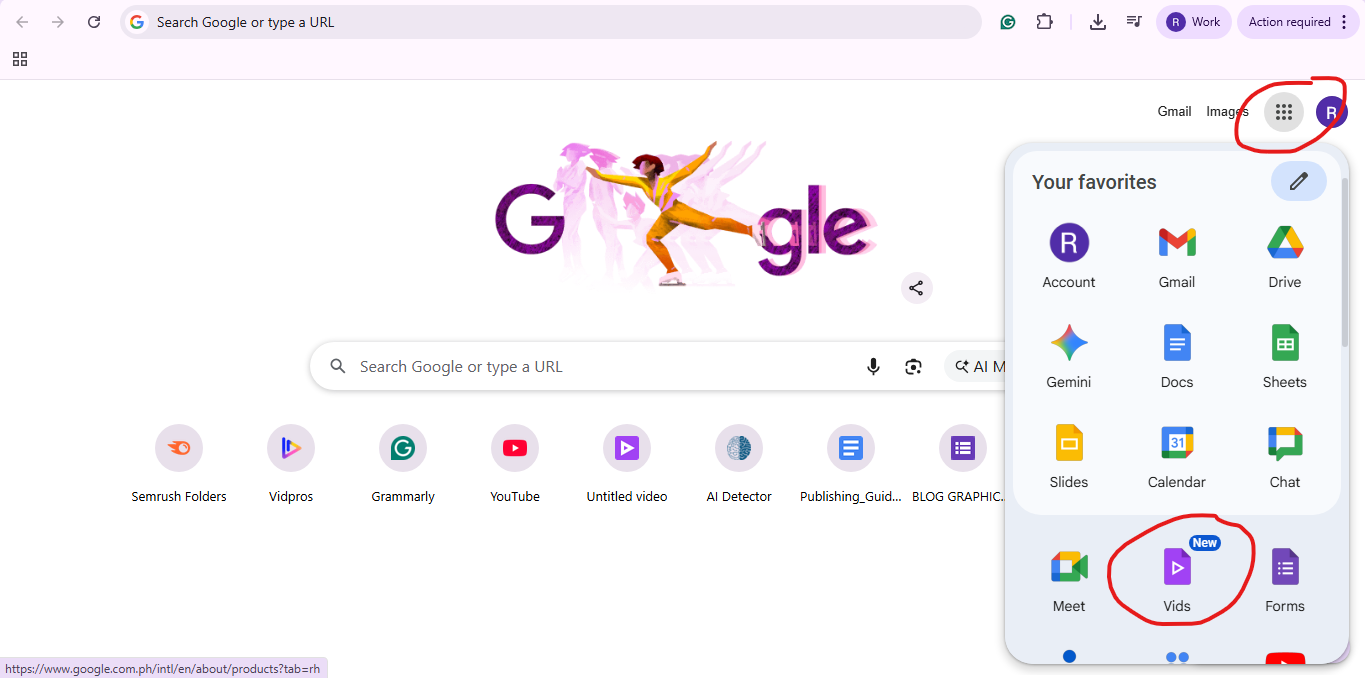
If you have access, you can open Vids in a few ways:
Type vids.new in your browser to start fast
Open Vids from your Workspace app launcher
Open a Vids file shared with you in Google Drive
The experience is desktop-first. You can watch on mobile, but creation and editing are meant for a desktop browser workflow.
If you’re hoping to build full videos on an Android device or on iOS devices, you’ll likely use mobile mostly for viewing and quick feedback, not heavy editing.
One thing I like here: it’s very “Google.” No installs. No weird exporting steps just to collaborate. It’s designed for teams.
Next question: what does it cost?
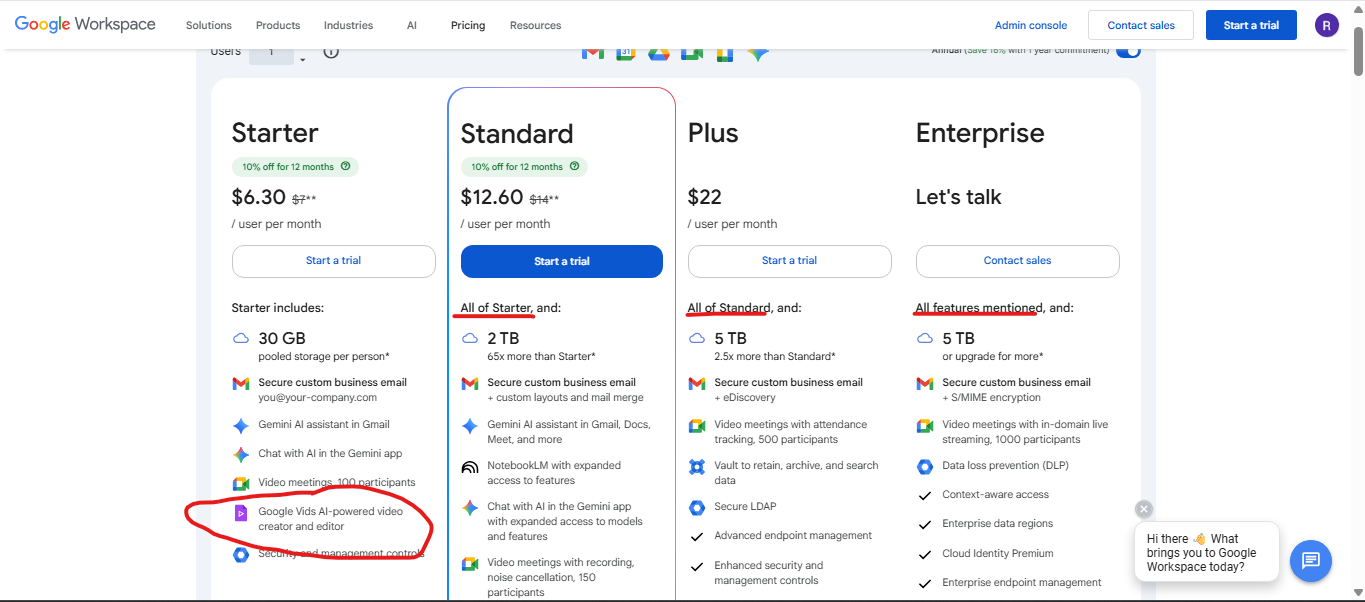
Pricing and Workspace requirements
Google Vids is tied closely to Google Workspace and Google’s newer AI plans.
In general, you’ll see it available through:
Workspace Business and Enterprise plans (common for teams)
Consumer access through plans like Google AI Pro and Google AI Ultra (availability depends on account and region)
So the fair answer is: it’s not a “random free editor inside Gmail.” It’s part of Google’s paid ecosystem, especially if you want the newest AI features.
Features Deep Dive
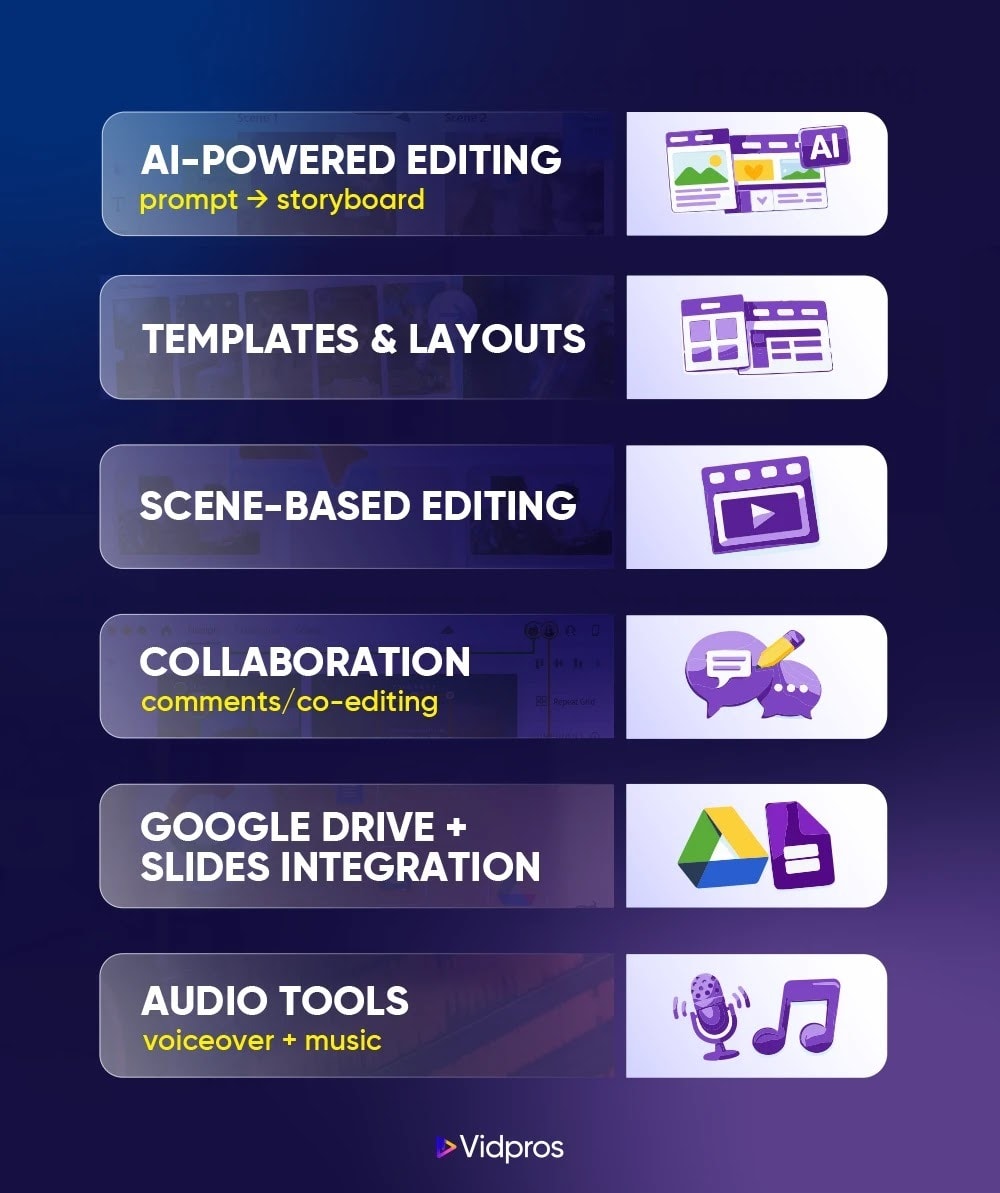
Google Vids can look simple at first, but there’s a lot packed into it. The key is understanding what it’s optimized for: easier editing for teams that don’t want to become editors.
Here are the features that actually matter day-to-day.
AI-powered editing and creation
This is where Vids feels like a “new Google video editor” compared to older Google tools.
You can start from a prompt and get a storyboard-style draft that includes suggested scenes, structure, and script ideas. Depending on your plan, it can also generate things like voiceovers and visuals.
A few AI features people mention a lot:
Script suggestions for storytelling flow
Scene-by-scene narration planning
Generative visuals and backgrounds
AI voiceovers and sound options
In some setups, an AI avatar presenter feature
My take: the AI is best as a starting push. The draft gets you moving, but you’ll still want to tweak pacing, text, and scene choices so it doesn’t feel generic.
Templates and layouts
Vids includes templates for common workplace formats. This is one of those features that doesn’t sound exciting until you’ve built your third training video and realize you’ve basically recreated the same structure three times.
Templates help with:
quick structure
consistent layouts
repeatable themes and themes
a more user-friendly setup for non-editors
You’ll also see “new templates” roll out over time. The real value is not variety. It’s speed.
Scene-based editing (not a universal timeline)
This is the biggest mental shift.
If you’re expecting a traditional editor with a universal timeline, Vids will feel different. It’s scene-first.
That means your workflow is usually:
add scenes
reorder scenes (drag them)
swap media inside each scene
Add text and motion
Adjust speed and timing per scene
Preview the full video
This actually makes editing less scary for beginners. You’re not fighting a complicated timeline. You’re building a story scene by scene.
Collaboration features
This is the most “Google Workspace” part of the product.
Collaboration looks like what you already do in Docs and Slides:
share with teammates
comment and review
co-edit scenes
track feedback without exporting versions
For marketing and ops teams, this is huge. The handoff is cleaner, and the “who changed what” chaos is reduced.
Integration with Google Drive
Vids plays nicely with Google Drive. You can pull in clips, images, and other media stored in Drive, and keep everything organized in one place.
This matters more than people think.
When your media is already in Drive, your team doesn’t have to chase files across desktops and Slack messages. It’s there. Shared. Accessible.
Integration with Google Slides
If you already have a Google Slides presentation, this is one of the best entry points.
You can bring Slides into Vids so each slide becomes a scene. Then you add narration, music, captions, or recorded clips.
If you’ve ever had someone say, “Can you turn this deck into a video?” this is how you do it without rebuilding everything from scratch.
Audio tools: add music, voiceover, soundtrack
Vids gives you practical audio options that fit workplace video needs.
You can:
record voiceover
Add multiple audio tracks
Add music as background
adjust volume to keep the speech clear
build a clean soundtrack vibe for training videos
I like that you don’t have to leave the tool just to handle basic audio. It’s not a full audio studio, but it covers what most teams need.
Alright, now that you know what’s inside Google’s video editor, let’s create a real video step by step.
Step-by-step Tutorial: Create Your First Video in Google Vids
This is the part that makes your review feel real. People want the “what do I click?” moment. We already talked about how to access Google Vids. Now that you’re in that screen, here’s a clean workflow that works for most first-time users.
Step 1: Start a new project
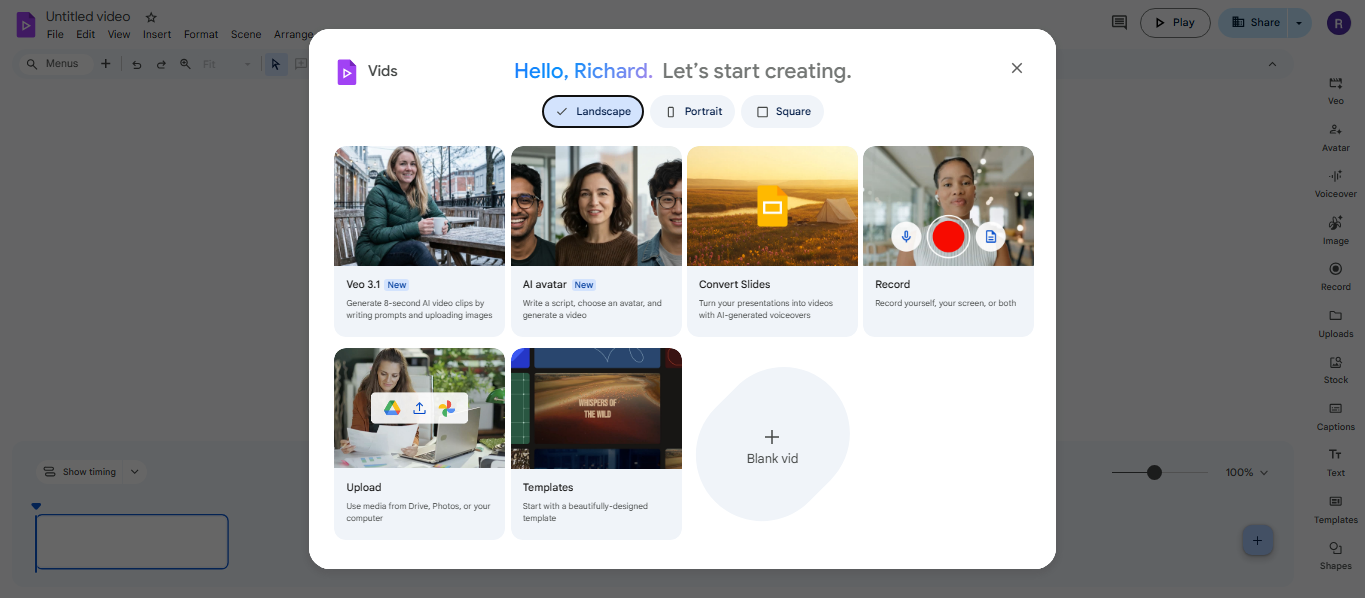
Open Vids in your browser (refer to our “How to Access Google Vids’ subheading) and start a new file.
Choose whether it’s a landscape, portrait, or square video. This is important if you want to upload the video from different social media platforms.
Once you’re done with that, click on the add icon that says ‘Blank vid’ to start your new project and view more options in the editing dashboard.
Step 2: Choose how you want to start
Pick one path:
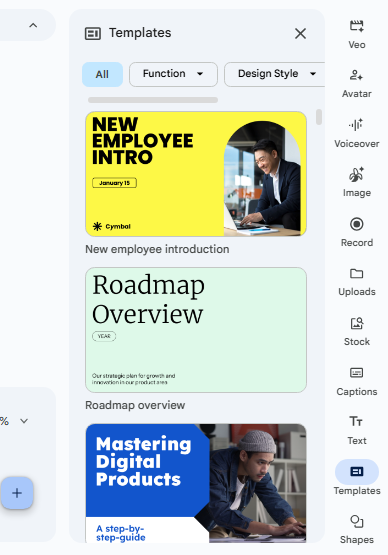
Templates
Start from scratch
AI-assisted draft (prompt-based)
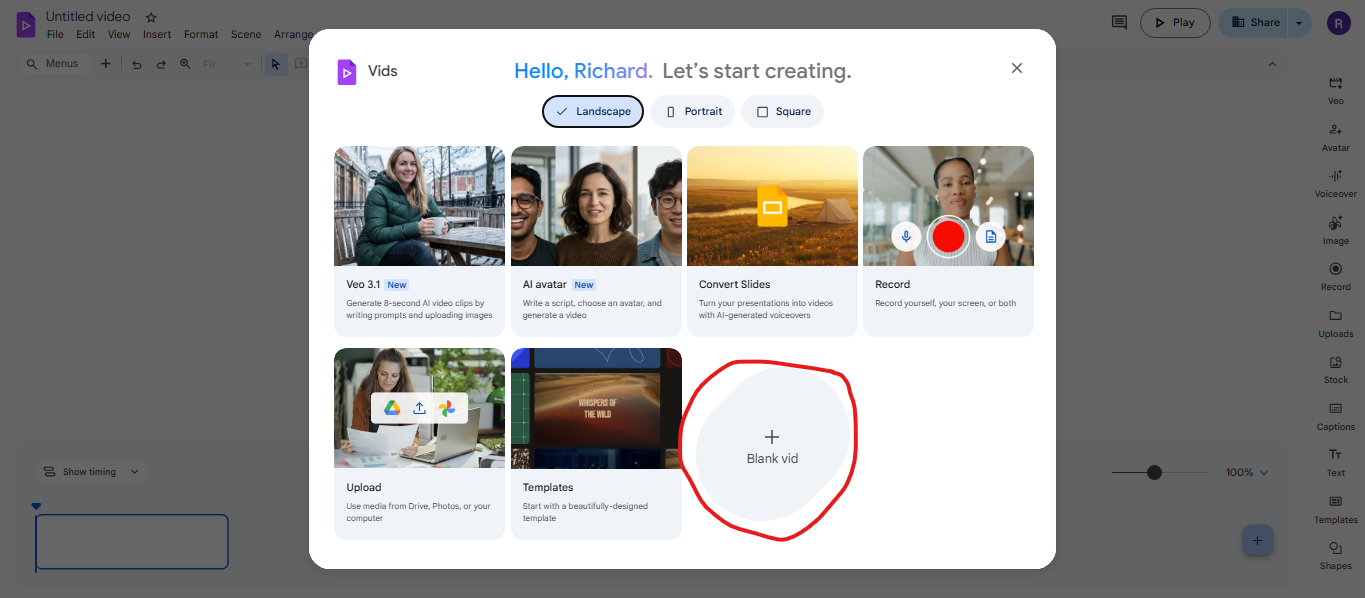
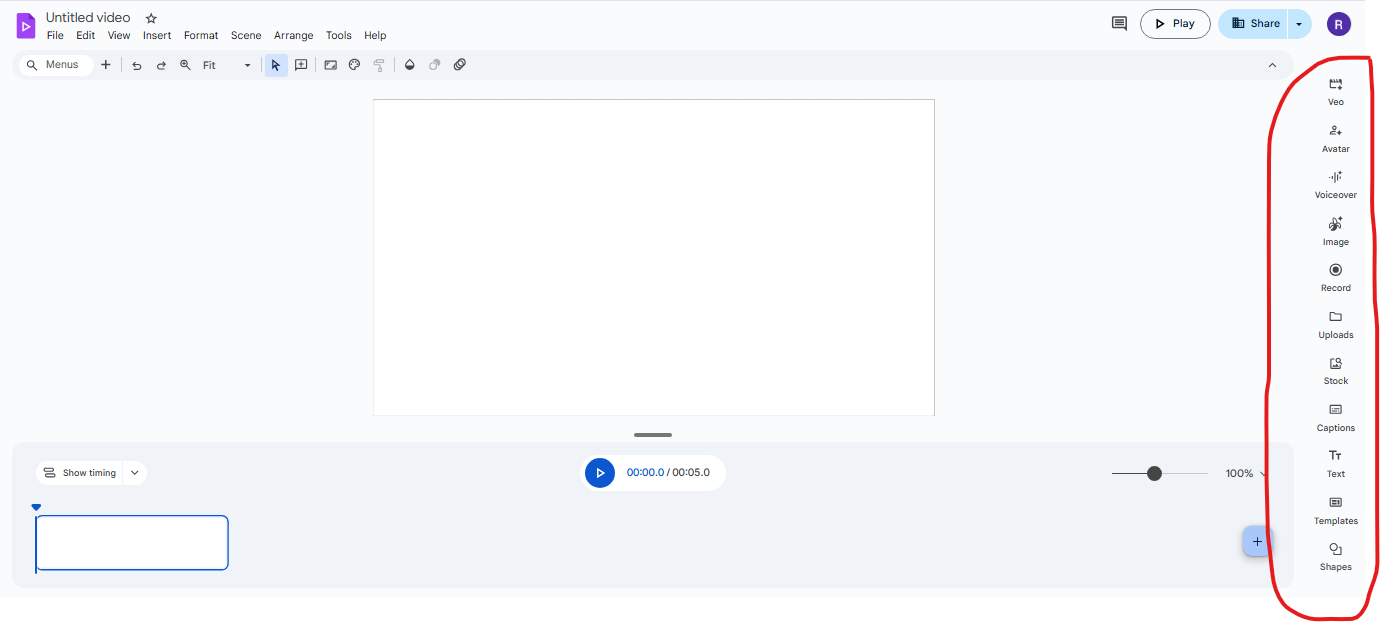
Once you’re in the dashboard, you have tools on the right side of your screen to choose from. If you click on one of these tools, more options will pop up beside that.
For example, let’s do an AI-assisted tool ‘Veo’:
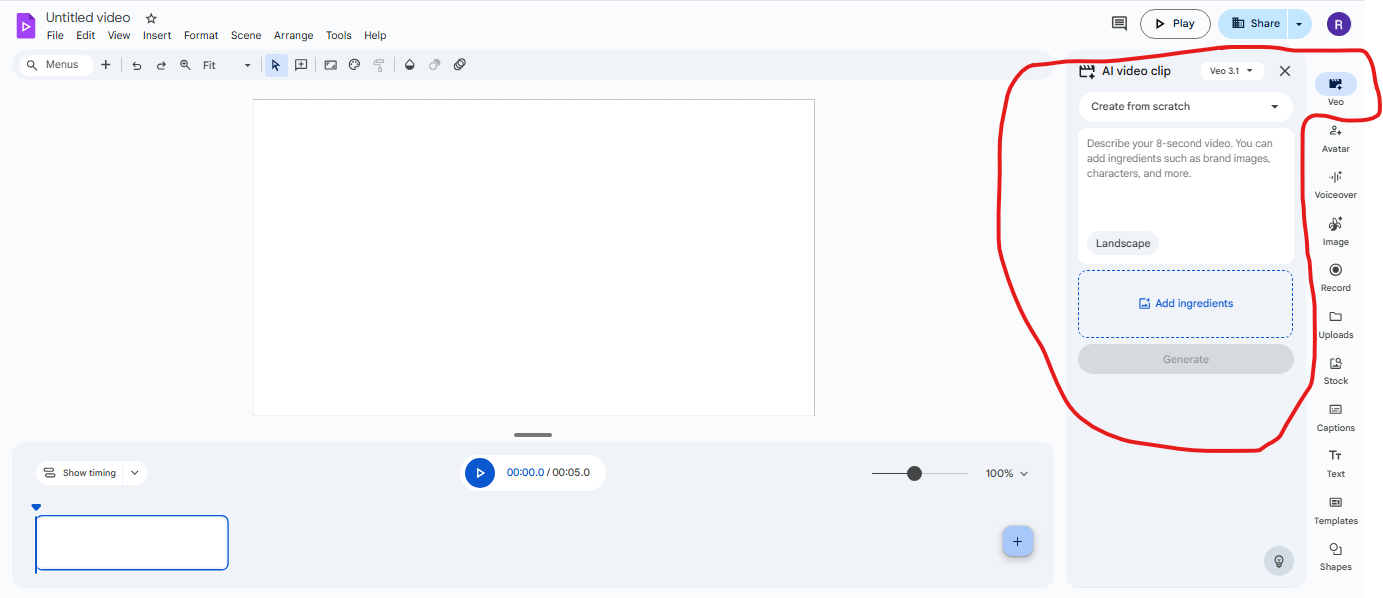
In the screenshot, you can see further instructions on how to make your first clip. You can write a prompt on what your clip should look like. You can even add ingredients to support that.
The same goes with the tools Avatar, Voiceover, Image, Record, Uploads, Stock, Captions, Text, Templates, and Shapes below that. Once you click it, there are further instructions that come with it.
It depends on you how you want to start your video. You can go with Veo, and then Voiceover, or you can choose from Templates and add it in the first clip, then paste a video from Upload on your second clip, and so on. It’s really up to you on how you want to start.
Quick tip: if you’re in a rush, templates are the fastest “looks decent” option.
Step 3: Build your scenes
Make sure that you already have an idea of what you want. That way, you can add and reorder scenes as you go. Keep it simple at first.
A practical beginner structure looks like this:
Scene 1: What this video is about
Scene 2: The context
Scene 3: The steps
Scene 4: The example
Scene 5: The wrap-up
This is basic storytelling, but it works. Your video will feel more coherent immediately.
You can make use of ‘Veo’ to make scenes that resonate with what you’re trying to build. Just type in a prompt of what kind of clip you want, with all the needed details to make it as accurate as possible. Or you can just experiment with it.
Here’s an example:
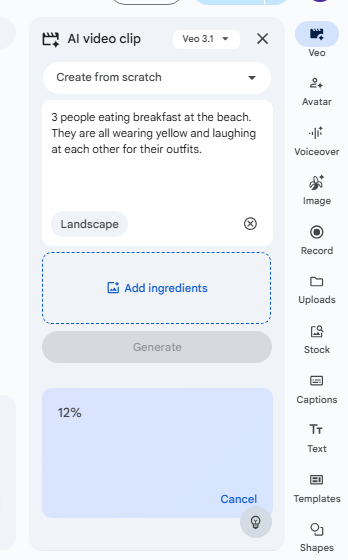
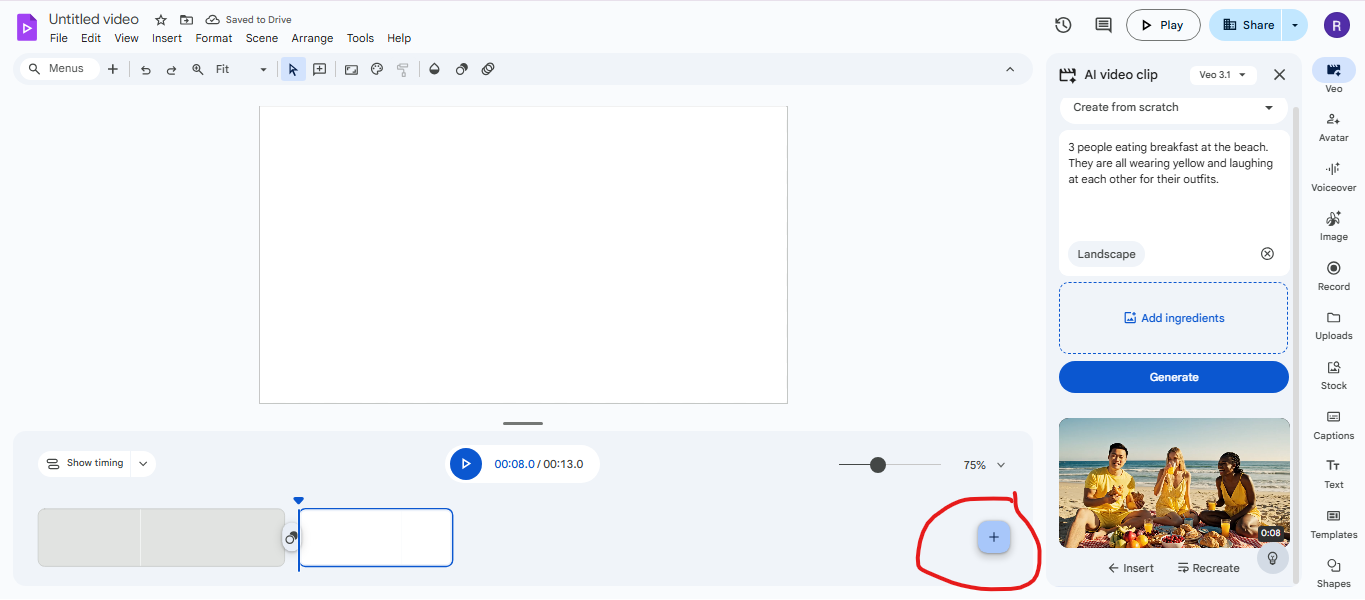
After you click generate, you’ll have to wait for the output and insert it into your storyboard.
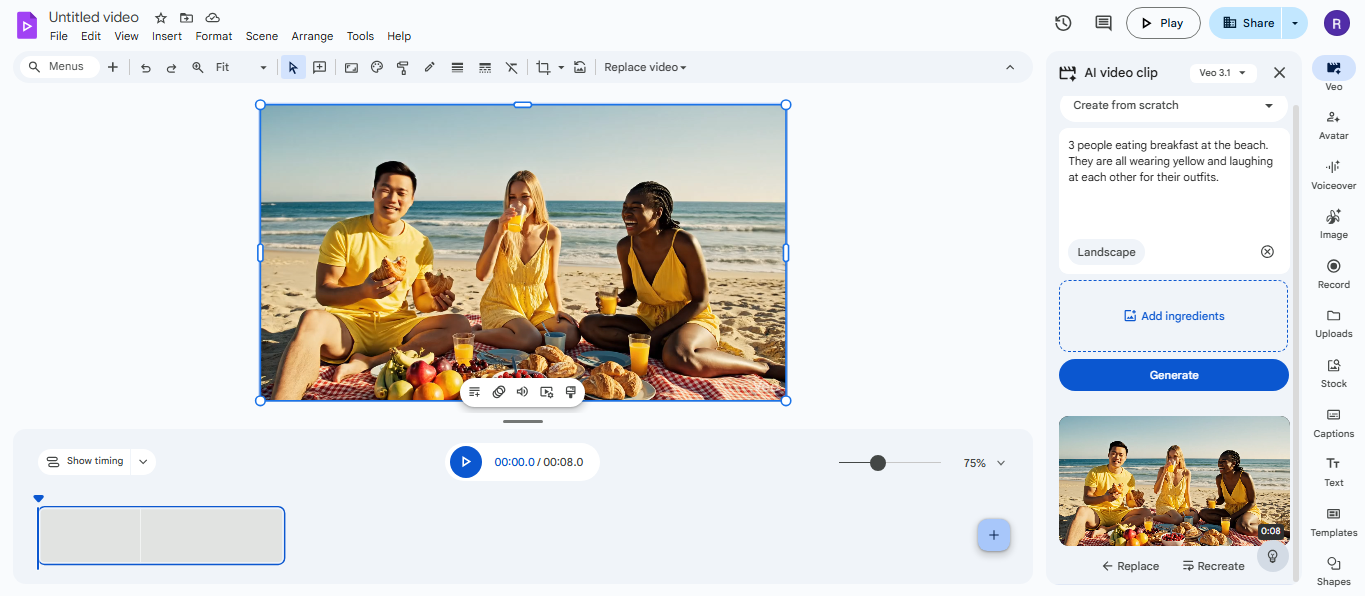
Then you can add more scenes if you want by clicking the ‘+’, as shown in the screenshot below.
You can also follow these steps for the other right-bar tools. Add a blank page, and paste a new scene, an avatar, a template, etc.
Step 4: Add media and visuals
To add media and visuals, you can simply drop in:
video clips from Drive
images or photos
backgrounds that match your theme
simple text overlays
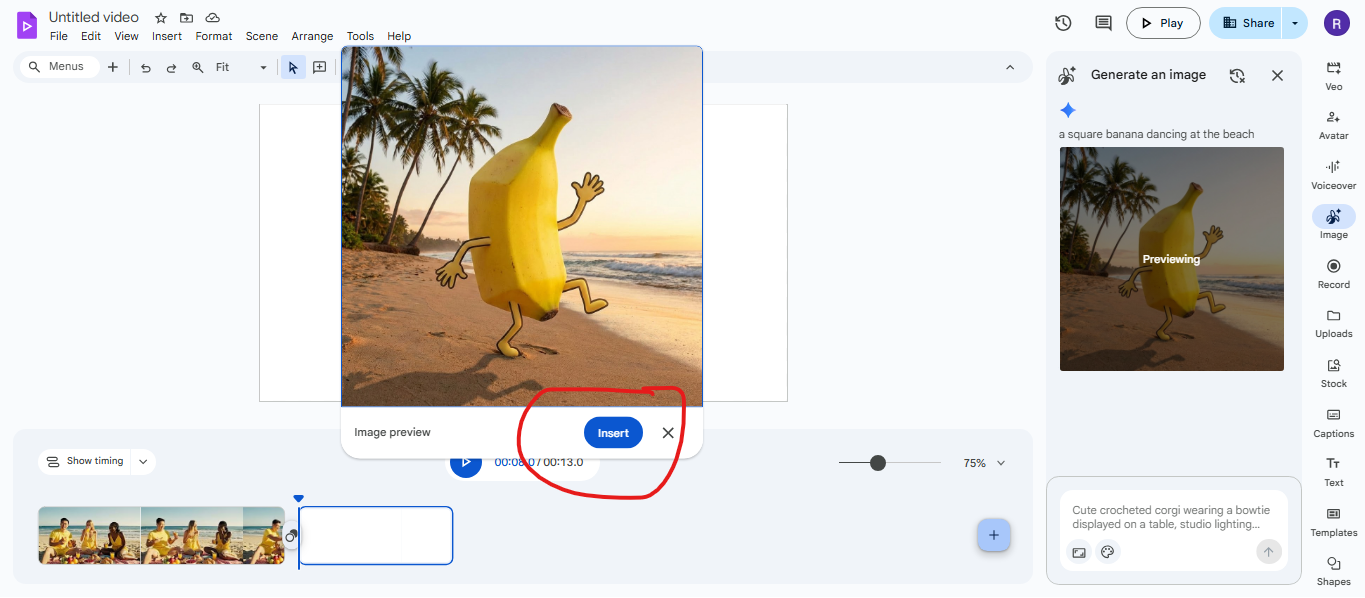
You can even use AI-assisted tools to create an image that matches your video style. For example, in the screenshot below, I put in a prompt for the image creation tool: ‘a square banana dancing at the beach’.
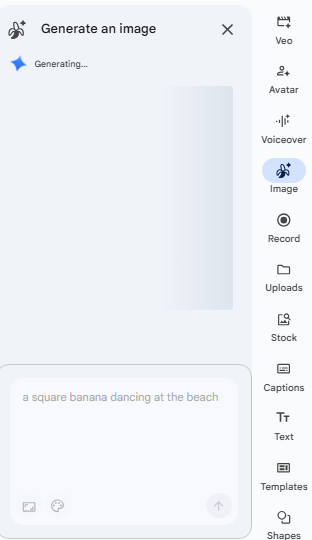
Result:
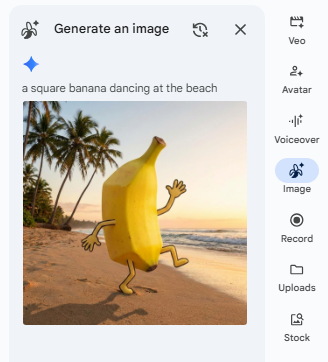
You can then preview that image and add it to a blank page or your previous scene, however you see fit.
In addition, you can also animate the image you created on the ‘Veo’ tool. Put a prompt on what you want it to look like and insert the output once you’re satisfied.
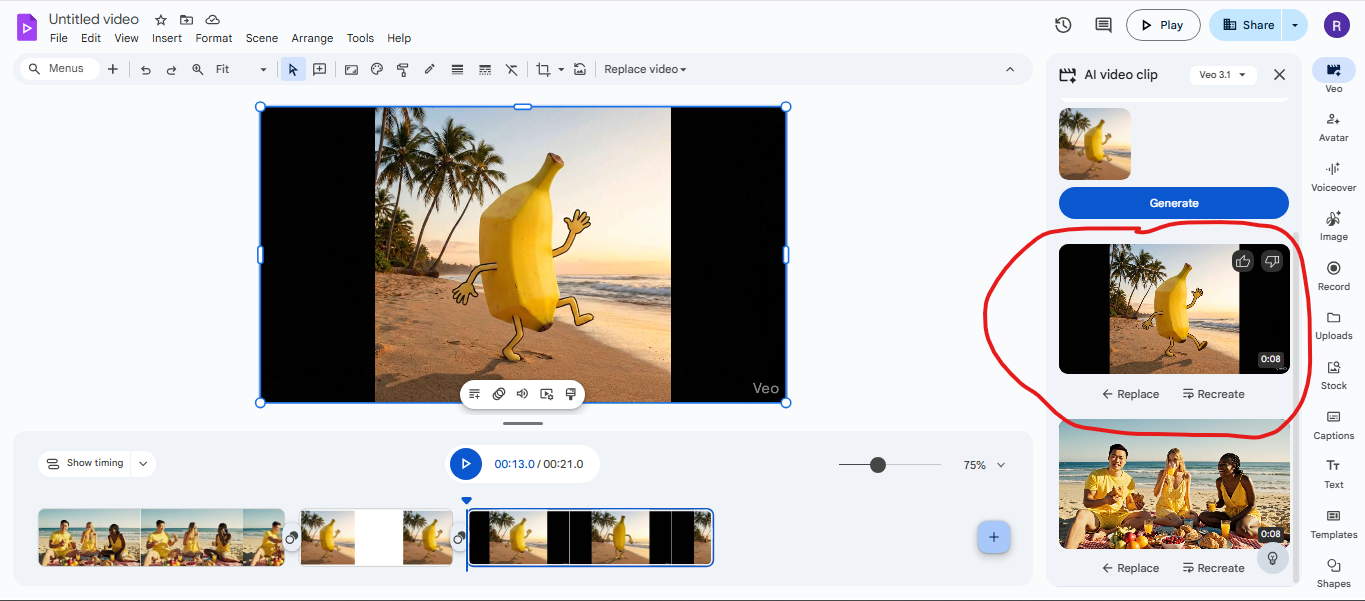
Click here for the result of the animation.
Step 5: Record inside Vids (camera, screen, or voice)
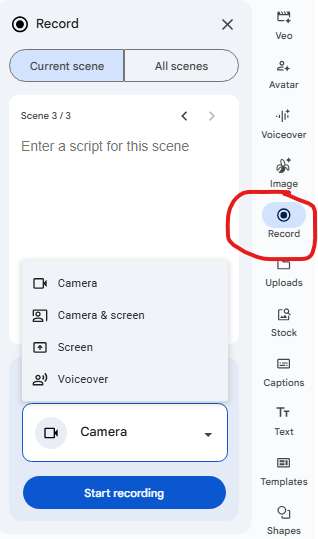
If you’re making training videos, screen recording is the easiest win.
You can record:
screen + narration
camera
camera + screen
voice only
Step 6: Trim and tighten
This is where you take it from “draft” to “watchable.”
Use transcript trimming if it’s available in your version. It makes cutting filler words and awkward pauses way faster than manual scrubbing.
You can also add in some transitions for better flow.
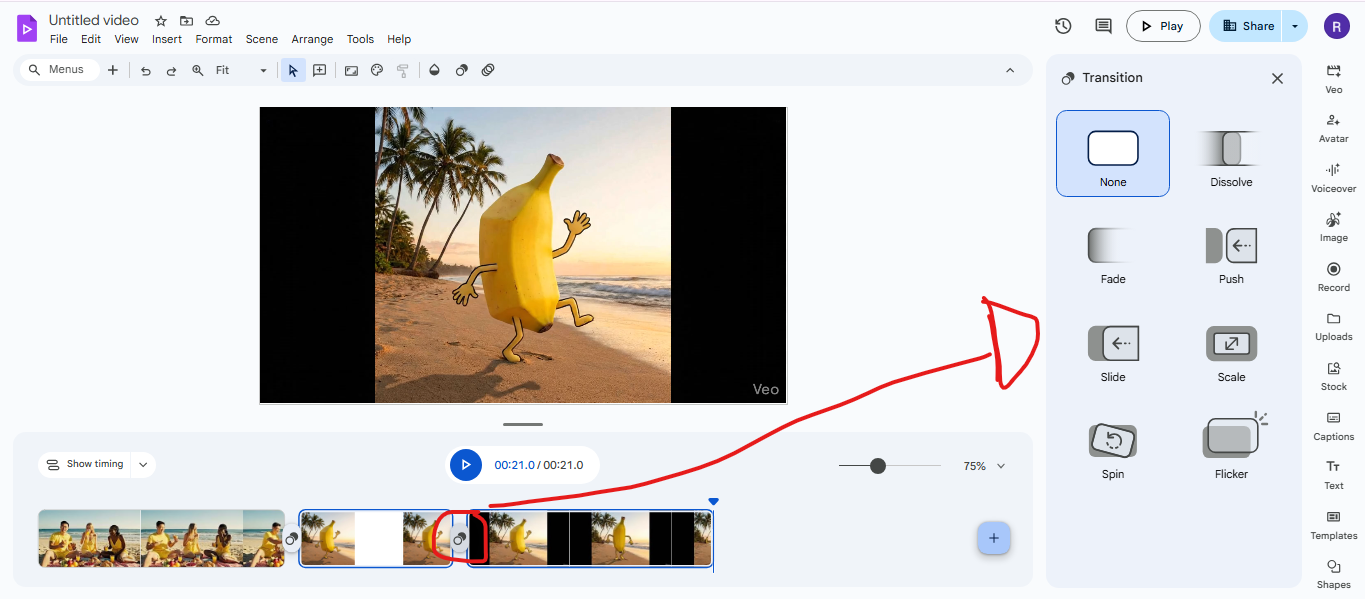
Step 7: Add captions and final polish
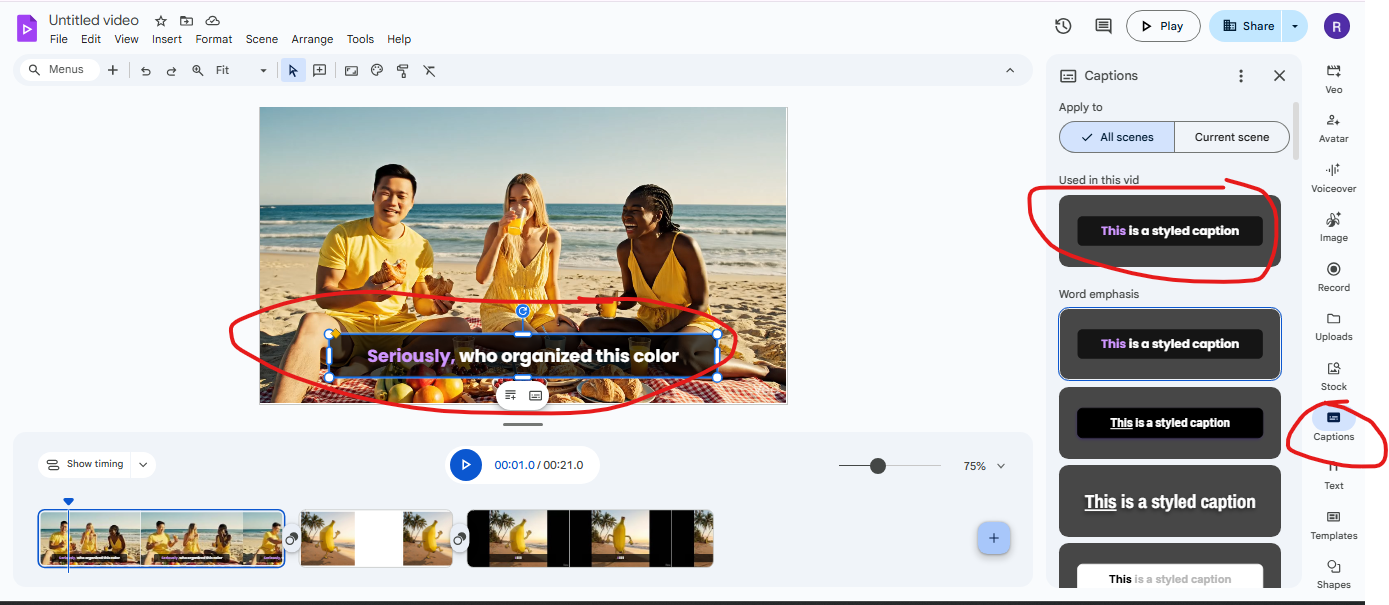
Add captions, choose a style, and make sure text is readable.
Polish checklist:
captions on
fonts readable
animations subtle
audio balanced
Preview everything once in full
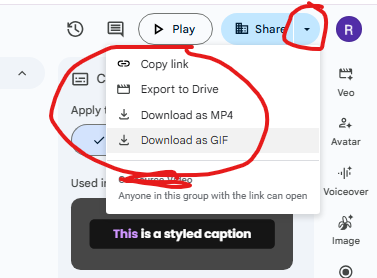
Step 8: Export and download
When you’re ready, export. In most workflows, you can export to Drive and also download a file format like MP4.
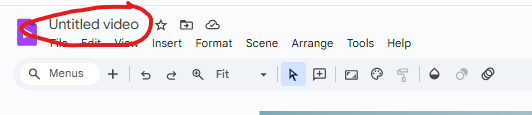
Also, don’t forget to name your project so it doesn’t get lost in the shuffle.
That’s the core loop.
Of course, there’s a lot more you can do inside Google Vids. So, you just have to experiment and take whatever you see benefits you most and your style.
But, how does Google Vids compare with the likes of Canva, Kapwing, and Adobe Express? Let’s take a look at it.
Google Vids vs Canva vs Kapwing vs Adobe Express
Vids makes the most sense when your team is already living in Google Workspace, and you want collaboration plus fast video creation.
The alternatives win when you need more creative flexibility or social-first workflows.
Tool | Best for | Editing style | Templates | Collaboration | Best “fit” vibe |
Google Vids | Work videos, training, internal updates | Scene-based editor | Yes, strong | Very strong inside Workspace | Simple, structured, team-friendly |
Canva | Marketing, branded social videos | Drag and drop | Massive | Strong | Fast design + video in one place |
Kapwing | Creator workflows, meme-to-marketing videos | Timeline style + automation | Good | Good | Quick edits, captions, repurposing |
Adobe Express | Brand assets + quick videos | Template-driven with Adobe polish | Huge | Good | Great if you already use Adobe |
My take: if you’re making weekly internal videos, Vids is the smoothest because the workflow is built for teams, not creators. If you’re making social content constantly, Canva or Kapwing might feel more natural.
Next, let’s spell out who should actually use Vids, so the “is it worth it” question is easier.
Who Google Vids is Best For
Vids is not trying to be everything for everyone. It’s trying to be the best option for work video.
Here’s where this Google video editor fits best.
Business presentations
If you’re tired of turning every update into another live meeting, Vids is perfect for async updates.
It can turn a deck into a video, add narration, and give your team something they can watch on their own time.
Training videos
This is the sweet spot.
Vids works well for:
onboarding
SOP walkthroughs
tool training
internal tutorials with screen recording
You can keep everything in Drive, collaborate in the same file, and get a consistent style across videos.
Marketing teams (internal enablement and lightweight content)
Marketing teams can use Vids for:
internal campaign recaps
sales enablement videos
product explainers
If you’re doing heavy ad editing or high-volume social repurposing, you might want something more creator-focused. But for internal video and lightweight external explainers, Vids holds up.
Frequently Asked Questions
Does Google have a video editor?
Yes. Google Vids is a Google video editor for creating and editing work-style videos inside Google Workspace.
Is Google Vids free?
Vids is typically tied to Google Workspace plans, and some consumer access is associated with Google AI plan offerings. For most teams, it’s a paid ecosystem tool.
Can I use Google Photos as a video editor?
Yes, for quick edits and highlight videos. If your goal is training videos, presentations, or team collaboration, Vids is the better fit.
Can I turn a Google Slides presentation into a video?
Yes. Slides-to-video is one of the most practical use cases for Vids.
Can I edit a video stored in Google Drive?
In many cases, yes. Vids is designed to work closely with Drive Media.
Google Vids is the Answer, With One Caveat
If your question is “Does Google have a video editor?” Google Vids is the answer in 2026.
The caveat is simple.
Google Vids is a Google video editor for workplace video. It’s about faster creation, easier collaboration, and a cleaner workflow inside Google’s ecosystem. It’s not trying to compete with full pro timeline editors.
If that’s what you need, great. Vids will feel surprisingly smooth.
And if you want the output without the overhead, or you’re trying to scale content beyond internal videos, that’s where Vidpros fits nicely. You get consistent edits without having to manage tools, templates, or a queue of half-finished drafts.
You can test it with a $100 trial that gives you one full week of professional video editing. Use it for 10 short-form videos or 1 long-form video, depending on what you need most right now.